This year, we created a series of 90s-themed cybersecurity games to support our annual compliance campaign.
Designing the games was the fun part.
Then came the less glamorous question:
How would we track who completed them?
The obvious answer was our LMS. It was also a much bigger answer than we needed.
The Games Expanded the Campaign
Our employees already had an annual cybersecurity course to complete. The games weren’t meant to replace it. They gave people more ways to notice, explore, and talk about the campaign around it.
These were short, fun challenges or browser-based games. One took employees through a social engineering scenario. Another turned a password challenge into a character reveal.
The 90s television theme gave the campaign a personality. Leaderboard points and prize drawings added curiosity and friendly competition.
Marketers create several ways for people to encounter a product. We wanted to create several ways for employees to encounter cybersecurity.
The annual course delivered the required learning. The games helped the larger campaign earn attention.
But every game raised the same tracking question.
What Did We Actually Need to Know?
As instructional designers, we’re good at building systems.
Sometimes a little too good.
A simple tracking request can quickly grow into conversations about LMS settings, SCORM packages, dashboards, data models, automation, and reporting rules.
Before building any of that, we stopped and asked:
What problem are we actually trying to solve?
We needed to know three things:
Who completed each game?
Who earned leaderboard points?
Who qualified for prize drawings?
We weren’t issuing certificates. The games weren’t part of anyone’s compliance record. We didn’t need detailed data about every click or choice.
We just needed to connect a completed game to an employee.
One Form. One Question.
Each game ended with a completion result. Depending on the activity, that might be a generated code, secret phrase, puzzle answer, or character name.
Employees clicked a link and entered that result in a Microsoft Form.
That was the entire process.
Because they were already signed in through Microsoft 365, Forms captured their identity and submission details. We didn’t need to ask for a name, email address, employee ID, department, or business unit.
The form had one question:
What is your completion code?
Why We Didn’t Use the LMS
We could have placed each game in our LMS. That would have provided more formal tracking.
It also would have created more work on both sides.
Employees might have needed to open the LMS, locate the right activity, launch it, move through several screens, and confirm completion.
None of those clicks would have improved the game. They would have created more distance between “That looks fun” and actually playing.
The LMS would have added work for our team too. Each activity would need to be packaged, uploaded, configured, tested, and maintained.
Even a small change could become a project. Fixing one instruction might mean editing the source, publishing the package again, replacing it in the LMS, and testing it one more time.
With Forms, we could update an instruction or code in minutes.
The LMS wasn’t the wrong tool. It was simply more tool than this job required.
Friction Works Both Ways
We often discuss friction as a learner problem. Every field, login, and extra click asks for a little more time and attention.
But learning teams pay for friction too.
They pay through added development, more testing, slower updates, and ongoing maintenance.
That doesn’t mean we should collect no data or avoid robust systems. It means the value of the information should justify the effort required to collect it.
For required compliance training, detailed records matter.
For a voluntary game and prize drawing, a one-question form may be enough.
The tracking method should match the stakes.
Our System Wasn’t Airtight
A submitted code showed that an employee had the code. It didn’t prove, beyond all doubt, that the person completed every part of the game.
Someone could share an answer.
We accepted that risk because these were optional campaign activities, not certifications or legal records. Making participation easy mattered more than building perfect proof.
Different stakes would have led to a different decision.
Simple worked because it was appropriate, not because simple is always better.
We Added Complexity When It Earned Its Place
Later, we connected the Forms data to Power Automate. That helped us manage leaderboard points and other campaign features.
We didn’t reject complexity. We added it when it produced clear value.
That sequence matters.
Start with the smallest system that solves the real problem. Then add new parts when you can explain exactly what they improve.
Otherwise, every new layer becomes something your team has to build, test, maintain, and feed.
The Bottom Line
The games helped our cybersecurity campaign earn attention.
Microsoft Forms lets us track participation without taking that attention away.
That’s the larger lesson. Treat learning like a product that needs to be marketed. Create reasons for people to notice it, explore it, and talk about it.
Then choose support systems that fit the purpose and stakes of the experience.
Nobody talked about our form.
Nobody talked about the automation.
Nobody talked about the reporting.
They talked about the games.
That was the clearest sign that we had spent our time on the right things.
You open LinkedIn, looking for one person’s take on one topic. Twenty minutes later, you’ve read four unrelated hot takes, a humble-brag about a promotion, and an AI-generated poem about “leadership.” The person you actually wanted to hear from? Buried three scrolls back, if you find them at all.
That’s not an accident. It’s not even really a feed — it’s a guess, made fresh every time you open the app, about what will keep you scrolling the longest. Sometimes that guess overlaps with what you actually wanted to read. Often it doesn’t.
Here’s the fix, and it’s been sitting inside LinkedIn’s search bar the whole time.
What we’re actually building
A feed made of only the people you chose — bookmarked, one click away, refreshed every time you open it. It’s not an official LinkedIn feature; there’s no button that says “Save My Custom Feed.” What you’re doing is building a very specific search, then bookmarking the URL it produces. LinkedIn doesn’t advertise this, but it works, and once it’s set up, it feels like cheating.
The real reason this is worth five minutes
Your feed is optimized to grab the fast, reactive part of your brain — the part that reacts to a bold claim or a hot take before you’ve decided whether it’s worth your time. That’s useful for the platform. It’s not useful for you.
A curated feed flips who’s in charge of that decision. Instead of your attention getting grabbed post by post, you decide up front, once, whose thinking is worth more of your time. Then the feed just… does that. Every time. That’s a small decision that keeps paying off — less noise, more signal, and twenty minutes back that used to disappear into the scroll.
How to build it
You’ll need two things: a list of names and about five minutes.
Step 1: Open a search. Click into the LinkedIn search bar at the top of the page and hit enter without typing anything — or type a + and hit enter. Either tells LinkedIn: don’t filter by keyword, just give me a raw search I can build on.
Step 2: Filter to Posts. You’ll land on a results page with tabs across the top — People, Jobs, Companies, and so on. Click Posts. Without this, you’ll get a mix of profiles and posts, and the feed you’re building needs to be posts only.
Step 3: Change the sort to Latest. By default, LinkedIn sorts by “Top Match” — the algorithm making judgment calls again. Switch it to Latest so you’re seeing things in the order they were posted, not the order LinkedIn thinks you’ll like.
Step 4: Add your people. Open All Filters and look for From Member (sometimes labeled “Posted by”). Start typing a name and select the right match — LinkedIn will often show several people with the same name, so check the photo or headline before you click. Repeat for everyone you want in the feed. There’s no cap most people will ever hit.
Step 5: Bookmark the result. Once your filters are set, you’ll see your custom feed. Bookmark that exact URL. That bookmark is now a live, standing search — click it any time, and LinkedIn re-runs it fresh, pulling in new posts from your list automatically.
That’s it. Five minutes, and LinkedIn is now working for you instead of the other way around.
What to know before you rely on it
A workaround has edges. This one lives in a bookmarked URL, not an account setting, so two things follow. First: it can break if LinkedIn changes how its search URLs are structured, which platforms do periodically — you’ll know because the bookmark dumps you on an error page or a blank results screen instead of quietly failing. Don’t panic, just rebuild the search; same five minutes it took the first time. Second: adding someone new means updating that URL yourself — right-click the bookmark, choose Edit, paste in the refreshed link, or just rebuild the whole filter from scratch once your list has grown enough to be worth it.
Make it work harder
Build more than one of these. A feed of five industry voices you trust. A separate one for people talking specifically about your niche topic. A third for competitors or peers you want to keep half an eye on — each is its own bookmark, and none of them cost you more than the five minutes it took to build the first.
You can also pair a feed with a keyword instead of the blank search: start with a topic — “instructional design,” in quotes for an exact match — then layer the From Member filters on top. Now you’re seeing only your chosen people, talking about only the topic you actually care about.
Check it on a schedule, not a compulsion. The whole point here is breaking the scroll habit, not building it a new home. Once a day, on purpose, beats the general feed on autopilot.
The bigger point
This is a small hack standing in for a bigger habit: deciding, on purpose, what gets your attention instead of letting a feed decide for you. LinkedIn happens to be where this particular trick lives right now. The instinct behind it — curate before you consume — is the same one worth applying everywhere your attention is for sale. Twenty minutes back, every time you open the app, adds up faster than you’d think.
You spent three weeks on that compliance module. Got the objectives perfectly clear. Slide two, exactly where Gagne said they should be. Your instructional design was textbook.
Then you watched what happened: Learners skimmed the objectives and jumped ahead. Exit interviews revealed the pattern: “I knew what I was supposed to learn, so I didn’t pay attention to how.” Poor retention. Minimal application on the job.
Meanwhile, your colleague’s module—the one that starts with no objectives, just a failure scenario—had learners leaning forward, engaged, completing it in one sitting. Quiz performance was stronger. Six months later, managers reported better application.
It breaks every rule you were taught.
It works anyway.
Why?
The answer isn’t about engagement tactics or making training “fun.” It’s about something most instructional designers fundamentally misunderstand about how curiosity affects learning.
We think curiosity is the appetizer.It’s actually the main course.
The Conventional Wisdom Makes Perfect Sense
Robert Gagne’s Nine Events of Instruction have anchored systematic design for 40 years. For good reason. Event #2—”State the Objectives”—makes logical, ethical sense:
Learners deserve to know what’s expected. Objectives reduce anxiety. Clear expectations help learners organize information. Transparency respects their time.
Every instructional design certification teaches this. Every ADDIE process includes it. Lead with learning objectives? You’re being a responsible designer.
You’re also sabotaging the learning.
Not for the reason you think.
What We Got Wrong About Curiosity
Most of us carry the same assumption: Curiosity is an engagement tactic. Gets attention. Makes training feel less boring. It’s the motivational wrapper around the real content.
Curiosity = appetizer. Learning = main course.
That’s backwards.
What if curiosity isn’t decoration for learning—what if curiosity is how learning happens?
What Loewenstein Actually Discovered
In 1994, Carnegie Mellon psychologist George Loewenstein published research that should have changed everything.
Most people know the sound bite: curiosity is a “cognitive itch.”
They miss why that matters.
Loewenstein showed that curiosity isn’t a personality trait. Not a motivational boost. It’s a specific cognitive state triggered by a knowledge gap—the uncomfortable distance between what you know and what you realize you must know.
The itch only happens when you perceive something’s missing.
The critical insight: Curiosity requires just enough knowledge to recognize that the gap exists.
Too little knowledge? Confusion. Too much knowledge? No gap. Curiosity lives in between.
Most training never enters that zone.
Lead with learning objectives? You fill the hole before learners know there’s a hole to fill. You answer questions they haven’t asked yet. You solve problems they don’t feel.
The gap closes before it opens.
The Thing We’ve Been Getting Wrong
The conventional wisdom: Curiosity captures attention, then objectives structure the learning.
Twenty years after Loewenstein’s psychological framework, neuroscientists at UC Davis finally measured what curiosity does to memory. Matthias Gruber, Bernard Gelman, and Charan Ranganath put people in a brain scanner and had them learn trivia facts—some they were intensely curious about, others they didn’t care about at all.
The results were clear.
When people were curious, their brains showed two things: First, the same reward circuits that activate for food or money lit up for information. Curiosity isn’t just mental—it’s rewarding at a neurological level.
Second, and more importantly, the brain regions involved in memory formation showed dramatically enhanced activity.
Curious brains form stronger memories.
But here’s the finding that changes everything:
The memory enhancement wasn’t limited to the information they were curious about. When learners were in a curious state, they formed stronger memories for related information too—including details they weren’t specifically trying to learn.
Your compliance module just changed.
When you open with a knowledge gap about the $2M invoice error—before you explain the approval process—you’re potentially creating the same memory-enhancing state Gruber observed in the lab. While the research tested trivia, the underlying mechanism appears domain-general: the brain doesn’t distinguish between “curiosity about Beatles trivia” and “curiosity about approval checkpoints.” It responds to the knowledge gap itself.
The evidence suggests that curiosity-driven learning creates conditions where information sticks more effectively—not just the answer to the question, but the surrounding procedures, policies, and protocols you teach while learners are actively working to close the gap.
Loewenstein predicted this in 1994. Psychology. Neuroscience confirmed it in 2014. Biology. Most instructional designers still haven’t caught up.
Watch what happens in real time:
The learner sees three URLs. Almost identical. One cost $2M.
I know URLs. I know phishing. But I don’t know WHICH character matters.
Prior knowledge: activated. Gap: perceived.
They lean forward. Character by character. Domain by domain. What am I missing?
Questions generated. Attention locked.
When they spot it—that tiny subdomain difference—resolution floods in.
There.
That’s when memory formation happens most effectively. Not when they read the objectives slide listing “three types of phishing patterns to identify.” When they discover the pattern themselves while actively hunting for it.
That’s not engagement theater.
That’s learning.
The curiosity gap creates the conditions for deep processing—the productive mental work of building understanding that lasts.
Lead with objectives? Learners passively receive information. Lead with gaps? They actively construct meaning.
This is why the “wrong” design wins.
Not because it’s more engaging. Because the design creates the cognitive conditions where memory formation is most effective.
The Gagne Question: Is This a Contradiction?
If you’re a Gagne loyalist—and if you’ve been trained in systematic instructional design—this sounds like throwing out proven frameworks for trendy engagement tactics.
It’s not.
Loewenstein didn’t disprove Gagne. He updated him with 30 years of neuroscience Gagne didn’t have in 1985.
Gagne was right that learners need objectives. Right that systematic design matters. Right that structure reduces cognitive load.
He just put Event #2 in the wrong spot.
Gagne assumed learners needed the destination before they’d take the first step. Loewenstein proved they need to want the destination first.
The objectives aren’t wrong. The timing is.
The synthesis instructional design has been missing:
Keep Gagne’s structure. Create Loewenstein’s gap. Flip the sequence.
Traditional approach:
State objectives (Event #2)
Present content
Practice
Assess
Updated approach:
Activate schema (give just enough context to perceive the gap)
Open the gap (present the failure, anomaly, or question)
Sustain the gap (reveal information gradually as they work to close it)
Close the gap (NOW state the objectives—as the earned answer)
Transfer the gap (create a new scenario where they apply the pattern)
The objectives still exist. Still provide structure and clarity.
They’re just repositioned as the answer to a question the learner is already asking.
The Implementation Problem: Why Most Designers Get This Wrong
Some designers try this once and fail.
What usually goes wrong? They confuse mystery with confusion—threw learners into a vague scenario where nobody knew what domain they were in, what to pay attention to, or whether they could even solve the problem, and working memory collapsed under the weight of too many unknowns competing for too few cognitive resources.
The training didn’t just fail to engage. It actively overwhelmed.
Then they concluded: “Curiosity gaps don’t work. Gagne was right all along.”
But that’s like saying vegetables don’t work because you served raw, unwashed potatoes.
The implementation was wrong. Not the principle.
Loewenstein’s research was clear. Curiosity only works when the gap is:
Perceivable (learners can tell what they don’t know)
Specific (the missing information is bounded, not infinite)
Closeable (learners believe they can find the answer)
You can’t just throw learners into ambiguity and hope curiosity emerges. You need just enough frame to direct attention without spoiling the answer.
The frame prevents confusion. The gap triggers curiosity.
Compare these:
Bad gap (creates confusion):
“Here’s a $2M invoice error. Figure out what went wrong.”
What domain? Accounting? Data entry? Fraud? What am I looking for? Everything? One thing? Can I even solve this with what I know?
Anxiety spikes. Working memory overloads.
Good gap (creates curiosity):
“Three people approved this invoice before it went out. The amount was wrong from the first click. Your job: find which approval checkpoint failed—and why everyone missed it.”
Domain: clear (approval process) Task: specific (identify the failed checkpoint) Scope: bounded (it’s about process, not everything) Gap: present (I don’t know which checkpoint or why it failed)
The second version gives learners orientation without answers. They know what to pay attention to. They don’t know what they’re going to discover.
That’s where curiosity lives.
Why Your SME Will Hate This (And How to Win Them Over)
The SME conversation usually goes like this:
“Why waste time on mystery? Just tell them what they need to know.”
Fair objection.
Here’s the reframe:
When you lead with answers, you’re adding to the pile of 2,000 things they’re supposed to remember. Most of it disappears within a week—you’ve seen the post-training assessment data.
When you lead with the problem, something different happens. The information you give them isn’t competing with 2,000 other facts. It’s the answer to a question they’re actively trying to solve. Research shows memory formation is more effective when learners encounter information in a curious state—when they’re working to close a knowledge gap.
The SME’s content doesn’t change. The sequence does.
You’re still giving them all five vulnerability types. Still covering every approval checkpoint. Still delivering the same expertise.
We’re just repositioning it from “information to memorize” to “answer to a problem they’re trying to solve.”
And the sequence determines whether their expertise becomes information that fades or knowledge that sticks.
The Working Memory Question You Can’t Ignore
Picture your learner staring at that objectives slide.
Their brain is working. But on what?
Reading the bullet points. Trying to figure out why this matters. Wondering when the real content starts. Checking Slack.
That’s mental effort. But it’s not productive mental effort. It’s not building understanding. It’s just… busy work for the brain.
Cognitive load theory has a name for this: extraneous load. Mental effort wasted on poor design instead of directed toward learning.
Now picture the same learner encountering the $2M invoice error scenario.
Their brain is still working. But now it’s working on: What checkpoint failed? Why did everyone miss it? What pattern am I not seeing?
That’s also mental effort. But this time, the effort IS the learning.
Current cognitive load theory distinguishes between two types of load:
Intrinsic load (inherent complexity of the material)—UNAVOIDABLE Extraneous load (wasted mental effort from poor design)—ELIMINATE THIS
The goal isn’t to reduce all cognitive load. It’s to eliminate wasteful load so learners can direct their limited working memory toward productive cognitive processing.
Create a boring objectives slide? Extraneous load.
Create a confusing, unbounded mystery? Also extraneous load.
Create a bounded, directed knowledge gap? You minimize extraneous load while creating optimal conditions for learning.
The critical factor: Working memory capacity is limited. Research suggests we can hold about four chunks of information at once. During a curiosity gap, learners are holding:
The question or problem
Their activated prior knowledge
Attention to relevant cues
Meta-cognitive monitoring
Manageable—if you’ve provided the frame.
Without the frame? Add uncertainty about domain, confusion about task, anxiety about solvability. Working memory exceeds capacity. Extraneous load spikes. Confusion replaces curiosity.
The design principle:
Bounded + directed + solvable = optimal conditions for learning.
From Theory to Monday Morning: Redesigning Your Next Module
You probably have a module you’re working on right now.
Right now, it probably starts with objectives. A dutiful list of what learners will know and be able to do.
Your redesign framework:
Phase 1: Don’t Delete the Objectives—Delay Them
Your objectives aren’t wrong. Just premature. Move them from slide 2 to the moment after learners have encountered the problem the objectives solve.
Phase 2: Replace Event #2 with “Frame the Gap”
Open with three elements:
Domain specification (what realm are we in?)
Specific question (what don’t I know?)
Bounded scope (how big is this problem?)
Traditional objectives: “By the end of this module, you will identify three types of phishing URLs and explain how each exploits user behavior.”
Framed gap: “Three employees clicked three different links last month. One lost their password. One leaked quarterly forecasts. One triggered a $2M breach. The URLs looked almost identical. Your job: find what the security team missed.”
Same learning outcome. Different entry point.
One spoils the answer. One creates the itch to know.
Phase 3: Reveal Information Gradually
Don’t dump the content. Unfold it.
Let learners predict before you explain. Show examples before you give the pattern. Make the resolution earned rather than delivered.
Phase 4: State Objectives as Resolution
NOW—after they’ve wrestled with the problem—tell them what they just learned:
“Those are the three phishing patterns most employees miss: subdomain spoofing, homograph attacks, and URL parameter injection. You just learned to identify all three in context. Now let’s practice on new examples.”
The objectives become the answer, not the assignment.
The One Thing to Audit Right Now
You don’t need to redesign your entire curriculum today.
Start with one diagnostic question:
In your next module, are you answering questions learners haven’t asked yet?
If yes, you’ve found your gap opportunity.
The fix isn’t complicated. It’s sequential. You’re not removing information. You’re reordering when it appears.
I’ve built a tool that walks you through exactly how to audit your modules for curiosity gaps—and how to redesign them without starting from scratch.
It’ll show you where you’re spoiling answers, where you’re creating confusion instead of curiosity, and where you’re missing opportunities to turn passive content into active problem-solving.
The Bigger Picture
This isn’t about making training “fun.”
Not about engagement metrics or completion rates.
It’s about designing for how memory actually works.
The research is clear: Curiosity creates conditions where memory formation is enhanced. When you create the gap first, you’re not just capturing attention—you’re creating the conditions where the information you worked so hard to design actually sticks.
The question isn’t whether to use systematic design or curiosity-first design.
It’s how to synthesize both.
Structure that creates productive cognitive processing instead of passive information consumption.
If you aren’t digging holes before you fill them, you aren’t teaching. You’re just reciting.
Your next module starts Monday.
Slide two is waiting.
What will you do with it?
References
Gagné, R. M., Briggs, L. J., & Wager, W. W. (1992). Principles of instructional design (4th ed.). Fort Worth, TX: Harcourt Brace Jovanovich College Publishers.
Gruber, M. J., Gelman, B. D., & Ranganath, C. (2014). States of curiosity modulate hippocampus-dependent learning via the dopaminergic circuit. Neuron, 84(2), 486-496. https://doi.org/10.1016/j.neuron.2014.08.060
Sweller, J., van Merriënboer, J. J. G., & Paas, F. (2019). Cognitive architecture and instructional design: 20 years later. Educational Psychology Review, 31(2), 261-292. https://doi.org/10.1007/s10648-019-09465-5
Want more like this? The thinking in this post comes from Think Like a Marketer, Train Like an L&D Pro—a deeper dive into applying behavioral science and marketing psychology to learning design.
Are you an L&D pro looking to make your mark? The learning landscape is changing fast. Your skills matter more than ever before.
In this field, some professionals rise above the rest. But how? What sets them apart isn’t just what they know. It’s what they do differently every day.
Here are three key habits that top L&D leaders practice. These aren’t complex strategies. They’re simple actions that yield big results. By adopting these practices, you’ll build more than just a career. You’ll create a reputation as someone who moves the whole profession forward.
Ready to stand out? Let’s explore three practices that anyone can do to transform their L&D journey from good to exceptional.
Tip #1: Always be learning!
This one should go without saying….but sadly, it is one I see a fair number of people failing at. Dedicate time on your calendar to keep up with the latest in your field. As Seth Godin asks, “Did you do the reading?” “The reading isn’t merely a book, of course. The reading is the difficult work of learning to think with the best. It means staying caught up. It means understanding. The reading exposes you to the state of the art. The reading helps you follow a thought-through line of reasoning and agree, or even better, challenge it. The reading takes effort. If you haven’t done the reading, why expect to be treated as a professional?” In this post, I share my personal setup, which gives you a good start. But you can personalize this for whatever works best for you:
Why this works for L&D professionals: As learning experts, we should model the behaviors we promote. Following learning sciences research, adult learning theories, and emerging instructional technologies shows that you practice what you preach. The most influential L&D professionals stay informed about workplace learning trends, neuroscience breakthroughs, and technological advancements before they become mainstream training approaches.
Enhanced approach for L&D: Create a “learning portfolio” showcasing how you apply new methods to your own development. For example, if you’re exploring microlearning, document your experience with a 30-day microlearning challenge. Join communities like the Learning Guild, ATD, or specialized LinkedIn groups where L&D professionals discuss latest research. Consider obtaining certifications in emerging areas like learning experience design or data-driven training evaluation.
Tip #2: Share what you learn (Work Out Loud)
The quickest & easiest way to get started is to reshare things from other people that you find helpful. In the long-run, try to write and talk about the things your learning. Ideally, you’ll have your own “home” on the web. Try to get yourname.com It is cheaper & easier than you think. Use an automated scheduling tool like Buffer to share the gems you find on social media sites like LinkedIn.
Why this works for L&D professionals: Sharing learning insights positions you as a practice leader while demonstrating your instructional design and communication skills. Publishing case studies, practical applications, or even thoughtful questions shows potential employers and clients that you can translate learning theory into practical value. Your shared content becomes both a portfolio and proof that you understand knowledge transfer principles.
Enhanced approach for L&D: Create content that bridges academic learning research with practical workplace application. Consider starting a blog series like “Research to Practice” where you translate academic findings into actionable training approaches. Develop and share templates, assessment tools, or learning frameworks that others can adapt. Document mini-experiments when you test new learning approaches, sharing both successes and failures transparently.
Tip #3: Find a way to help your community
Whether it’s peers, clients, or other industry professionals, offer your expertise to solve real problems in the L&D community. Volunteer to mentor new instructional designers, host learning circles on challenging topics like measuring training ROI, or create free resources that address common pain points. Consider partnering with non-profits who need learning programs but lack resources.
Why this works for L&D professionals: In a field centered on developing others, your ability to contribute meaningfully to your professional community demonstrates both your expertise and your commitment to the profession’s core values. These contributions create authentic relationships with peers and decision-makers while providing real-world testing grounds for your approaches.
Enhanced approach for L&D: Create a signature contribution that leverages your unique background or specialty. If you have expertise in a particular, offer to help peers with that aspect of their training programs. If data visualization is your strength, run workshops on creating more impactful learning dashboards. Become known as the go-to person for a specific challenge that many L&D professionals face, such as increasing learner engagement or designing for accessibility.
Putting It All Together for L&D Success
For learning professionals, these three practices create a compelling professional narrative: you continually refresh your own expertise, translate that knowledge into shareable insights, and apply your skills to strengthen the broader L&D community. This approach demonstrates that you understand both the science of learning and the practical business of implementing effective learning solutions.
The most respected L&D professionals don’t just create great training—they advance the field through their own learning journeys and community contributions. By making these three practices a habit, you transform yourself from a training provider into a recognized learning leader whose influence extends beyond your immediate organization.
I also want to call out LearnX, which is a free event happening on Monday March 7 that has a great lineup of speakers including Elliott Masie, Ruth Clark, Nick Floro, Connie Malamed, Julie Dirksen, Megan Torrance and more. You can register here.
Thanks for reading!
What I’m Listening to: This morning I’m tuning in to Mat Kearney who is an artist that I’ve listened to for a long time but never really registered who he was until now. l bet you’ll recognize a few of his songs too.
How I Create My Weekly Newsletter (and personal curation tips you should steal)
I dusted off the cobwebs and published my first blog post in a while this week to answer the question I get a lot about how I create this weekly newsletter. Even if you don’t want to create a newsletter, there are some helpful strategies that can help you efficiently keep up with whatever you’re interested in.
Reading. You’re doing it right now. I bet you don’t even have to think about it. But have you ever wondered what’s happening in your brain to turn all these weird symbols into meaning? This video will teach you how to read all over again. What you’re doing right now is way more amazing than you ever realized.
Graphics are helpful for learning, right? Well, they can be extremely helpful for learning, but only if they’re the right kind of graphics to properly support it. In her latest article, Patti Shank shares how the wrong type of graphics can actually lower learning.
One of the things I often talk about when comparing marketing to L&D, is the use of emotion. For Marketers emotion is often central to what they do. This article by Leonard Mlodinow may help us understand why. Feelings don’t deflect us from good judgment. They guide it.
Why You Should Work Less & Spend More Time On Hobbies
As many feel increasingly pressed for time, they’re giving up on things that matter to them. When people don’t have time for hobbies, organizations also pay a price. Hobbies can make employees substantially better at their jobs for three reasons: they reawaken your creativity, give you a fresh perspective, and bolster your confidence. So knock off a little early today and go do something fun!
Word Tune rewrites sentences using AI to help improve your writing
Boosted is an online option for creating pro videos.
Pollly is a free, simple option for creating polls and brainstorming
Chrome Remote Desktop is something I’d totally forgotten about until I was recently reminded how easy it is to remotely connect with your home or work computer, or share your screen with others with it.
I Don’t Care About Cookies lets you get rid of cookie warnings from most websites. (Set your default and it takes care of the rest.)
LearnX – March 7 – Free online event with a great lineup including Nick Floro,
Since I haven’t written a blog post in a while, I thought it was time to dust off the cobwebs. I wanted to answer one of the questions I get asked the most. In this post, I’ll share a bit about my curation process and how I choose the things I share in my weekly newsletter.
While that may sound like a lot and something that consumes massive amounts of time – it really isn’t. Not if you know some of the tools and strategies I’m about to share with you. The good news is that even if you’re not looking to publish a newsletter, these concepts can help anyone who would like to improve their own personal process for consuming content from the web more efficiently.
Seeking is finding things out and keeping up to date.
Sensing is how we personalize information and use it. (Including managing & organizing)
Sharing includes exchanging our resources, ideas, and experiences with others.
The most effective thing you can do to keep up with whatever you’re interested in is to make the process as efficient as possible. Obviously, most of us have jobs and other responsibilities that limit the amount of time we have to spend on keeping up. We never have as much time to spend on it as we’d like. Fortunately, with a good process you can do very well in whatever small windows of time you’re able to manage a few times a week.
There are 3 key steps you can take to significantly reduce the amount of time you need to spend on keeping up:
Don’t go looking for information–let it come to you.
Filter out as much noise as possible.
Consolidate the number of “inboxes” you use.
Information Delivery & Filtering
The first step is to change the way you consume information. Instead of going out and looking for stuff, having the stuff you want come to you is WAAAAYY better. The most efficient way to make that happen is to use an app like Feedly. (Inoreader is another good option.) This step alone is a big step in the right direction towards efficiency.
Note: I’m on a free account but it is a grandfathered version that is no longer available. The current free version will give you up to 100 sources and 3 boards. Which is plenty for most people just starting out. If you need more than that, it is absolutely worth the few dollars a month to upgrade to a paid plan.
Consolidate Your Inboxes
Think about how many different places you look for information. Most of us visit a fairly large number of places daily including: our email inboxes (work & personal), social media sites, Amazon, news sites, weather sites, financial information sites and I could go on. You get the idea.
Most of these sites have a feed you can subscribe to which eliminates the need for you to go visit all these sites individually. Instead, by subscribing to their feeds, you can create a personalized information consumption system and organize it any way you like.
RSS is the magic that enables us to consolidate so many information sources into a single “inbox” (Feedly). Whether the information you want comes from a blog, a news site, Twitter, YouTube, newsletters, Reddit, podcasts or just about anything else, you can follow them in Feedly. (You can learn more here: 11 types of sources you can add on Feedly)
Here is how it works with Feedly. (Other feed reading tools work similarly.)
Following a new source
Here is a short video showing how you can find and follow new sources. You can discover feeds right from within Feedly which is great when you’re first starting out. Or more commonly for me, just add a site that you already know.
Here is a short video showing how you can find and follow new sources. You can discover feeds right from within Feedly which is convenient when you’re first starting out. Or more commonly for me, just add a site that you already know.
For starters, I highly recommend using the Feedly browser extension. It makes following sources quick & easy.
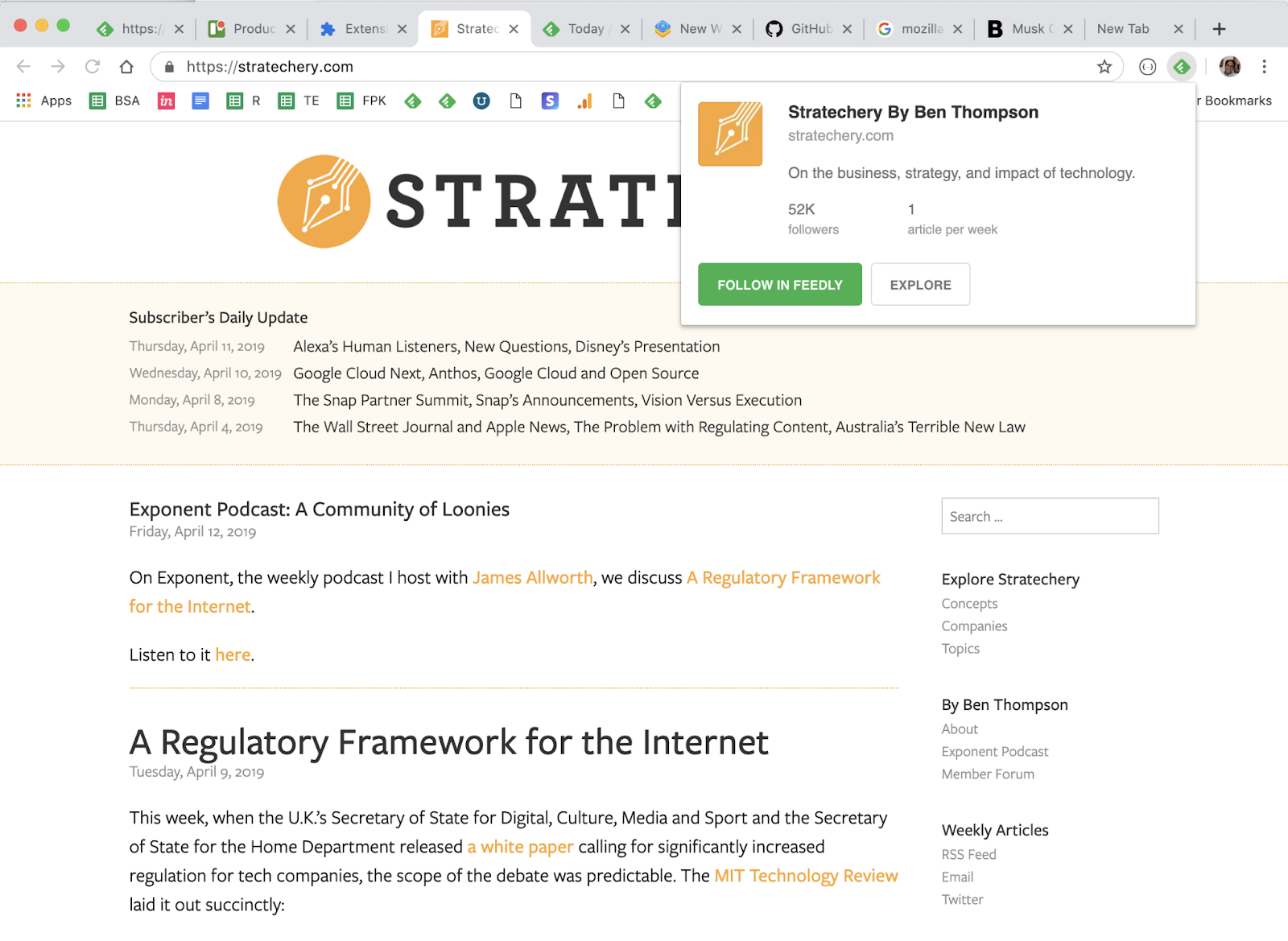
For the majority of sites the Feedly mini browser extension is all you need. Feedly Mini is a Chrome and Firefox extension. It automatically detects the RSS feed of the site/blog you are browsing and gives you the option to open it in Feedly, and add it to your feeds.
*Note that you can also save things to your Boards from anywhere with Feedly Mini. We’ll talk about those shortly.
Imagine that you are browsing the Web and you find a new source you want to follow in Feedly. When you click on the Feedly Mini icon, Feedly Mini will automatically discover the RSS feed for the page you are reading. It will show you a popup with information about that source. You can click on Follow in Feedly to preview the RSS in Feedly and add it to one of your feeds.
Sometimes you’ll run into a site that isn’t quite so “friendly” and the feed is hidden from the Feedly extension. This is where the RSS Subscription Extension comes in handy.
The RSS Subscription Extension auto-detects RSS feeds on the page you are reading and upon finding one will display an RSS icon in the Omnibox, allowing you to click on it to preview the feed content and subscribe. The extension comes with a few feed readers predefined (including Feedly) and it also allows you to add any web-based feed reader of your choice to the list.
If you ever find a site that neither of the extensions above can identify a feed or the site simply doesn’t have one, there are tools like Fetch RSS and others that let you generate a feed yourself that you can use to follow updates for that site.
Email Newsletters
The ability to subscribe to email newsletters and keep them out of my inbox is one of my favorite things to do with Feedly. This allows me to control when I want to read a newsletter and find it much easier than if it is in my inbox. Who doesn’t want to declutter their inbox, right?!?!
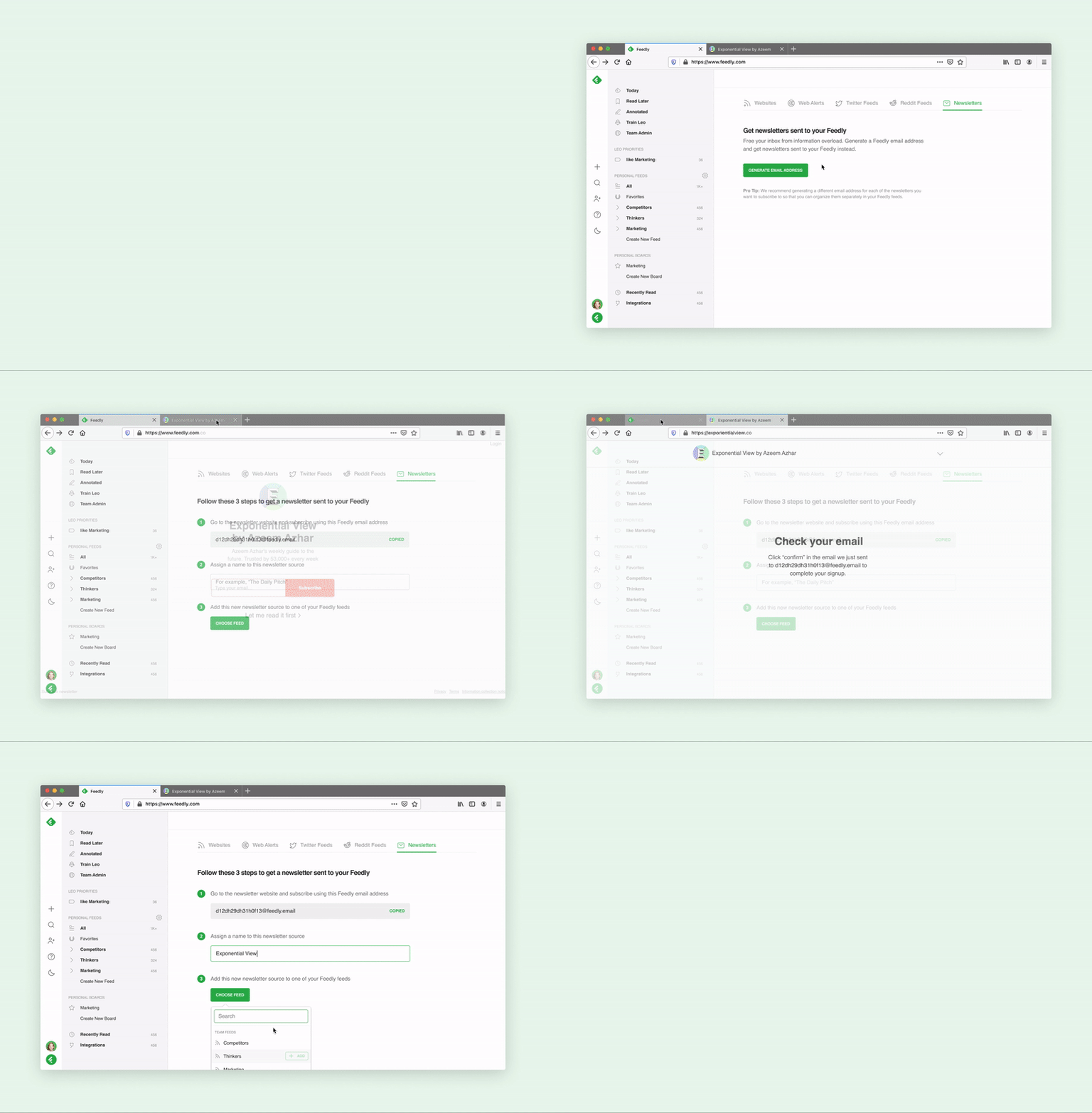
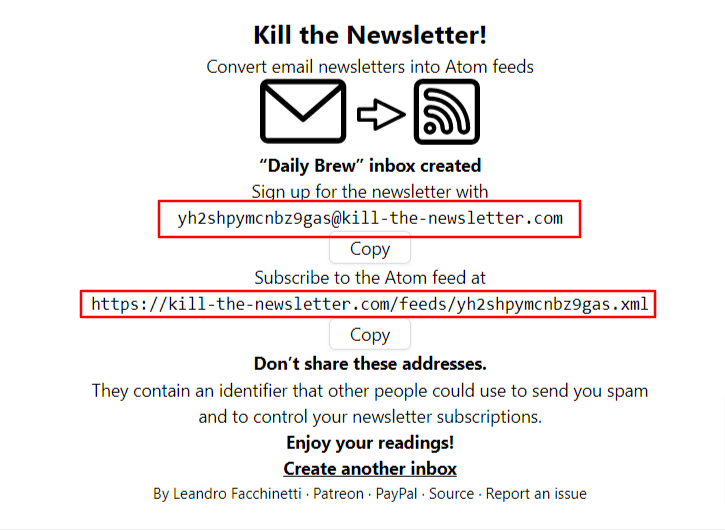
If you’re on the free version, don’t worry, you can still read your email newsletters in Feedly by using Kill the Newsletter. This site converts any email newsletter subscription into an RSS feed you can subscribe to in Feedly.
Instead of using your personal email address to subscribe to email newsletters, go to the Kill the Newsletter site and enter the name of the newsletter. This will generate a custom email to subscribe with along with the feed where all the newsletters will be sent.
Efficiency + Serendipity
This type of setup is very efficient. 90-something percent of the things I consume come through Feedly. But I also want to retain an element of serendipity. That is why I’ll occasionally dip into some of the “randomness” from places like Twitter and LinkedIn. Not everyone publishes to a blog or website and there are some super smart people who only share their knowledge via social media.
SIDE NOTE: Using Twitter Lists allows you to customize, organize and prioritize the Tweets you see in your timeline similar to how Feedly does that for everything else.
Discovering new stuff
I try to intentionally find content and avoid getting stuck in a ‘filter bubble’ by using some sites and tools to help me discover new things including:
Refind is a cool service that serves up 7 new links to you every day based on your interests. .
The Sample will pick a newsletter to deliver to you every day—sometimes related to your current interests, sometimes completely different. If you find one you like, it only takes one-click to subscribe. .
Deep Culture is a great weekly newsletter that gives you 20 interesting things in each issue.
Organizing & Prioritizing Your Feeds
Another great thing about Feedly is how it enables me to organize and prioritize all of my feeds. In essence I have organized all of my subscriptions in a way that prioritizes them into three categories:
A-List A small number of feeds that I want to see every day. These are my favorites and the best of the best.
B-List A larger number of feeds that I read if I have a bit of extra time. I probably get to these 2-3 times a week.
Everything Else These are the “nice to have” feeds. Maybe they are just for fun, or maybe there are a few random things to add that sense of serendipity I mentioned earlier. I read these whenever I get to them. Maybe on a weekend or sometimes never and that’s ok.
So now that you know how I keep up with things, the next step is keeping track of the good stuff so I can find it later. For the newsletter, I use a Feedly board to save the collection of things I’m considering each week.
Boards are like libraries of high-value content. When you find something that’s valuable, save it to a Board for future reference. You can create multiple boards to collect related items you want to save. Sort of like your browser bookmarks.
I also save things for other purposes like projects, workshops, research, conference sessions, etc using Bublup and Walling.App. There are tons of options for saving links, notes, etc. Way too many to cover here. I feel like I’ve tried almost all of them, so if you have any questions feel free to send them my way.
An important part of curating things for a newsletter or any other purpose is to provide some context about why it is important and how it relates to the people in your audience. For my newsletter, that happens as part of writing the content in a Google Doc that I’ll touch on in more in the section below.
For some people, this last step is the one that may be the hardest – myself included. Once upon a time, I had a thought in my head that went something like this: “I don’t know anything special…why would anyone want to see what I say/share?” And that is exactly NOT the point. The thing that changed the game for me was when I realized that the things I find valuable may also be valuable to others. So if you find something that helps you, share it so it might help others.
As long as you’re learning, you’ll always have valuable things to share no matter who you are.
Depending on what you want to share and who you want to share it with, sharing can literally happen with the click of a button. so time should not be an issue. With tools like Buffer and others, you can click a button to quickly queue up a post that includes the url and title from the site you want to share. It will often serve up an image you can include along with an opportunity for you to add a note on why you think it is valuable. Quick, easy – done! It doesn’t need to be anything more than that.
Some forms of sharing may require long-form options such as creating blog posts, videos, etc. This obviously takes more time and commitment than simply sharing links but it is also an opportunity to add more value and infuse more of your personal thoughts and knowledge.
There are too many options for sharing to list and new ones cropping up every day. I can tell you from experience that sharing what you learn is a valuable thing to do. It has given me opportunities that I could never have imagined were even possible.
Not only are you helping others when you share. You’re also helping yourself by building your visibility and the credibility of being a professional. Simply sharing one thing per week on LInkedIn can raise your visibility and potential opportunities. For example, people who share content on LinkedIn at least once a week are nearly 10 times more likely to be contacted for new opportunities than people who don’t share. (1)
Putting the Newsletter Together
Usually sometime on Wednesday or Thursday I’ll start pulling together the contents of the newsletter using the items I’ve saved to my Newsletter board in Feedly. There are almost always more than enough items so it is just a matter of selecting the best ones. The newsletter recipe I use is five articles, 3 podcasts and 5 new tools with a playlist of the music I’m listening to while I work.
Some people may wonder how the heck music got into a newsletter about learning, design and technology and it is an interesting story. As a reader of many newsletters, I’m always on the lookout for good ideas for mine and the “What I’m Listening To” idea comes from Tim Ferris’ “5-Bullet Friday” newsletter. I thought it was neat and tried it out…then not long after that I thought it was a bit silly and was going to take it out. Before I did, I took a peek at the statistics and was surprised to learn that the music list is consistently among the most clicked links in the newsletter. So the music lives on!
Anyway, I have a Google Doc template that I use to create posts for my website which runs on WordPress. For a long time, I used a plugin that would publish this Google Doc directly to WordPress as a new post. But that has stopped working and until I find a replacement, I just do a simple Copy/Paste into a new post.
During the week prior, I save the best things I find to my newsletter board in Feedly. Then when it is time to assemble the newsletter, all I have to do is browse the small number of candidates from the current week and pick the best. It usually takes me about 30 minutes to pull everything together into a post.
When I started sending out my newsletter back in 2015, I simply posted it to my WordPress website. Shortly after that I connected it up via RSS with a free Mailchimp account. This is easy to set up and automated once it is up and running. Mailchimp looks at my website every morning at 8am and if it finds any new posts, sends them out to my email subscribers.
Tips to Help You Get Started
If this sounds like something you’d like to try (I think everyone should!) here are a few helpful tips to give you a head start:
Signup for Feedly and follow your ‘must see’ sources. This could be your favorite authors, top experts in your field, a professional/industry organization, or anything else that always want to see. You don’t need a lot. Think quality over quantity. Even just five really good ones is a nice start.
Curate the curators If you want a bigger bang for the buck, follow really good curators. They’re already covering a lot of ground, which means you’re also covering a lot.
Strive for 25 If you can smartly select 25 good sources on any topic, you’ll be far ahead of most people with similar interests.
Use browser extensions and mobile apps Looking for ways to be ruthlessly efficient and tapping into your windows of opportunity (like waiting in line, riding the bus, etc.) can have a big impact.
Block time on your calendar Make it a habit. Trust me. Even if you can only spare 10 minutes a day, it is an investment that you’ll reap great returns on.
Share what you learn When you find something helpful, pass it along to your network with a note about how it helped. You’ll be surprise how valuable this can be.
Whether you’re just starting to think about your own process or looking to improve what you’re already doing, I’m happy to help in any way I can. Please feel free to send me any questions or comments you have.
Whew! That was a lot more than I thought it would be when I started it. Thanks for sticking with me all the way to the end.
What do you think? Do you do any of this? Do you have any better ideas or things that work better for you? What tips can you share? What questions do you have?
What does your content process look like? Far too many people jump directly into their content creation tool of choice and just start spraying stuff all over the place…but some of the most important work should happen before you even think about creating content. Here are a few tips I’ve put together after years of designing learning programs, presentations, eLearning, workshops, etc.
Get to know your audience
The first step: thoughtful consideration. Who will be attending?
Learn as much as you can about your audience. This will give you insight and context to focus your message, tailor your design and customize your delivery for a memorable, impactful experience.
To help you get started, check out these considerations from Nancy Duarte’s book, Resonate. The more of these you can answer, the better.
Always consider who is on the receiving end! Even if you are working with content you’ve delivered many times, different audiences deserve different considerations.
For example:
How would you present retirement planning to millennials?
How would you present retirement planning to mid-career professionals?
A thoughtful approach leads to sharing knowledge on this topic differently for these two audiences.
Of course, you’ll rarely, if ever, know everything there is to know about an audience. Don’t sweat it – just learn as much as you can. Any insights you glean will help you align with your audience and make your message resonate more powerfully.
“If you want me to give you a two-hour presentation, I am ready today. If you want only a five-minute speech, it will take me two weeks to prepare.” – Mark Twain
Less really is more
The dreaded data dump: no one wants to sit through anything that overloads them with information overload. Even the greatest topics will fall short if the audience doesn’t understand the key messages.
Overloading your audience with too much information leads to LESS understanding – not more!
Your goal is for people to remember a key message and act on it. When you cram too much information into the heads of your audience, the result is often a colossal waste of time for everyone. How can anyone do what you want, if they don’t remember what it is?
The challenge is significant. According to a study by Dr. Carmen Simon, a typical audience forgets up to 90 percent of what you tell them. And, as if that’s not bad enough, the 10 percent that one person remembers is a different 10 percent from what the next guy does.
Contrary to what many people think, our brains do not work like video recorders. Just because you say something doesn’t mean people will remember it – not even close! To create a memorable experience you’ve got to know how memory works.
Your audience should walk away able to answer these two questions:
What key points do you want them to remember? (Not too many! 3 is a good number to aim for)
What do you want them to do?
If people walk away from their experience with the correct answers to these questions, you’re well on your way to success.
Unlike PowerPoint and other similar templates, this one is based on brain science to help you get your message through and move your audience to action (while helping you cut out any extraneous content along the way):
Seriously: don’t skip the pre-work
For many designers, the urge to skip these steps and skip straight into the content building process can be very tempting. But don’t do it! With a little bit of consideration up front, you’ll create a stronger message and improve your odds for success.
I’ve shared two of my favorite “pre-work” resources that have been helpful for me and there are a lot of other great options out there. How do you manage these “up-front” steps in your content creation process? What have you found to be most helpful in your work?
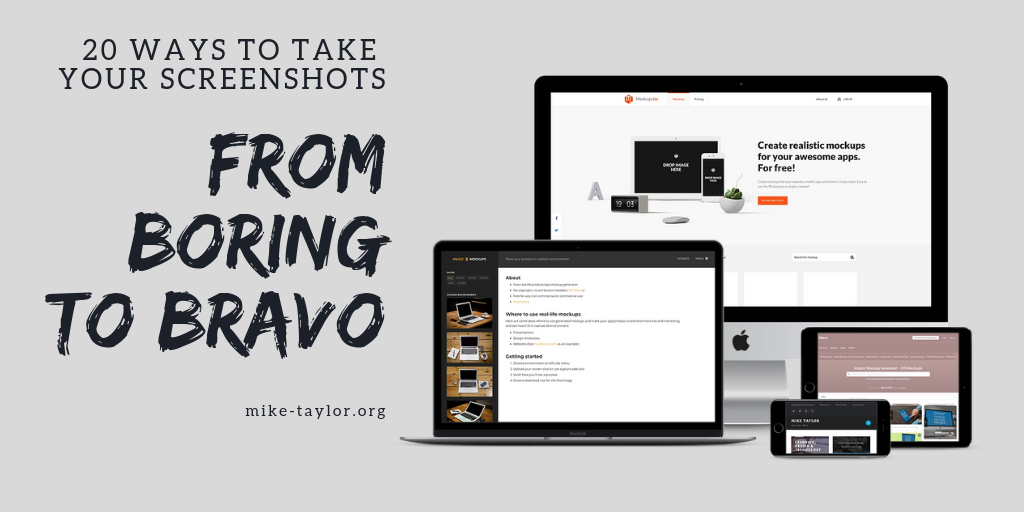
At some point or another, we’ve all used screenshots. They’re great for showing others what you see on your screen. Most people who take screenshots give them little, if any, thought. But if you’re an elearning or presentation designer, a little thought about how you use your screenshots can go a long way.
Instead of just slapping the screenshot as is, onto your slide, document or whatever you’re creating, why not add some context? Placing it in a realistic scene will make a much better impression. The two most common contexts most people deal with are documents and on-screen, digital media. Here are a few examples of what I’m talking about.
On paper
For documents and other items that are typically printed, I’ve been using this stacked paper graphic from Tom Kuhlmann for nearly a decade now and it is so useful that I expect to still be using it another decade from now.
Here’s a couple of ways I’ve used it in an elearning course. Just place your screenshot on top of the blank paper graphic and Voila! You’re just upgraded your screen captured documents.
If your screenshots are not from documents or the web, placing them in the appropriate device screen is almost always a good option. Fortunately, there are a lot of good options for this one.
If your stock photo searching skills are strong, you can also find some good photographic options for placing your screenshots. As long as they’re like this one from a straight-ahead angle, adding a screenshot is pretty simple.
But what do you do if the only good photos you can find aren’t as screenshot friendly, like this one below?
You can still do it. It requires a few more skills beyond a simple copy and paste. You can learn some graphic design tips and buy Photoshop. Or you can let one of these super handy online mockup sites do the job for you the quick and easy way for free.
Most of these mockup tools will either let you upload your own screenshot, take a screenshot for you from a URL or both.
Mockup Tools Worth Knowing
Shotsnapp – a simple tool that lets you create nice looking mockups in a jiffy.
MockupsJar – In addition to computers and mobile devices this one lets you make mockups of apparel, packaging and other things.
Magic Mockups – This one uses your own screenshots or will take one for you from a website URL.
Dimmy – Super simple option. Choose a device and a background color then upload your screen capture. Boom! Done.
Dunnnk – Another easy to use option that lets you choose from mobile devices, smart watches, tablets, laptops, and desktop computers.
One of my favorites is Artboard Studio, which lets you really show off your screen captures by designing entire scenes right in your browser. No downloads needed, no plug-ins necessary and no installations required! Check it out.
You can pick one of their great looking free templates, or start from scratch and design your own scene with their big library of items.
There you go. No more excuses for using boring, bland screenshots in your projects ever again!
What do you think?
Are you already using anything like this? How do you like to present screen captures in your projects? What other good options should we add to this list? Give me a shout out and let me know!
Raise your hand if you’ve ever experienced any of these things:
A computer crash wiped out all of the favorites from your web browser
You wanted to access a bookmark on your work computer from home (Or vice versa)
You couldn’t find a bookmark you know you saved because there are too many or you didn’t remember which folder you put it in.
For those of you raising your hand, this post is for you. For everyone else, you’re lucky (so far) and this post is for you too. Keep reading to find out why.
Social bookmarking can solve all of those problems and bring you additional benefits you probably haven’t even thought of. Your first question may be, “What the heck is social bookmarking?”
Social bookmarking is a better way to save the websites and online resources you want to keep track of. Instead of your bookmarks being locked away in the browser your computer, social bookmarks live online where they can be accessed from anywhere and easily shared with others.
This makes your bookmarks available to you anywhere in the world you have an internet connection and 100% immune to computer failures. It also makes finding that one unique site you bookmarked 3 years ago easier to find. Here’s how…
The only option for organizing the bookmarks in your browser is to put them into folders. The challenge with that is a bookmark can only live in one folder. Social bookmarking improves upon this by letting you tag the things you find with multiple keywords or tags. Tagging can eliminate (or at least minimize) time-sucking searches for that elusive bookmark you know is in there somewhere. Let’s see how.
Tagging
Tagging is a flexible, informal way of categorizing that allows you to associate keywords with online content (web pages, pictures & posts). Even if you’re not sure what tagging is, you’ve already seen it in action on sites like Twitter, YouTube, Flickr, Diigo, and many others.
Unlike library subject cataloging, which follows a strict set of guidelines (i.e., Library of Congress subject headings), tagging is completely unstructured and freeform, allowing you to create connections between data any way you want. (BTW, the art of tagging by folks who are not librarians or catalogers is called “folksonomy.”)
Tagging helps bring order to online content. You can think of a tag as a topic. Adding a tag (or #hashtag) to your tweet, blog post, photo, video, etc makes it easier for people to find and follow the content related to a certain topic. For example, you might want to tag that cool elearning example you found with tags like elearning, storyline, xapi, etc.
Watch this video to learn more about how social bookmarking works. (NOTE: Delicious isn’t a thing anymore but Diigo works the same way.)
While the video uses delicious to demonstrate social bookmarking, it isn’t around anymore and I recommend another one called Diigo (pronounced Dee-go).
Here’s a walkthrough of how you can use Diigo to collect and organize online resources.
Sharing
Diigo has some additional features that are nice including the ability to share bookmarks with a group of people. ( Feel free to join our Learn Camp group and share your links with us! ) As Harold Jarche says, social bookmarks are “the simplest way to start sharing organizational knowledge”.
Social bookmarks are “the simplest way to start sharing organizational knowledge”.
Social bookmarks are fantastic for L&D pros. Especially for anyone who likes to share links and resources along with their workshops or conference presentations and the like. Whenever I lead one of the ATD Certificate Workshops I share a collection of examples, job aids, and other resources with everyone.
By using Diigo, I can share a single link that provides everything I want to share. That link never changes and the best part is that after the workshop is over I can add new things and the collection is automatically updated. People from last years workshop will see the latest and greatest. If they join the group or follow via RSS, they’ll also get notifications when something new is added. How sweet is that?
As if all of that isn’t enough, another big benefit is the ability to see what other smart people are bookmarking. Here are a couple great examples of smart people sharing great bookmarks:
Pro Tip: Follow these or any of your other favorites in Feedly and you’ll always know when any new items are added.
3 Reasons to Try Social Bookmarking
To wrap things up, here are 3 reasons you really should give social bookmarking a try:
You’ll free your bookmarks from your computer so they are safer and you can access them from anywhere
Tagging makes it is easier to actually find what you save when you need it
Sharing your bookmarks with others is MUCH easier and this is a great way to start working out loud to help others learn along with you.
Getting Started
I’m confident that once you try social bookmarking, you’ll never want to go back to the old way.
For me, the key is making the process as frictionless as possible. Grab the browser extension or the bookmarklet to make saving a 1-click deal. Add the app to your mobile device to organize resources even when you’re away from your computer.
Here are a couple of the most common apps for changing the way you save and organize your online resources:
Given the all too common scenario of outsourcing, off-shoring and a number of other names for staff reductions it is more important than ever to have a “home base” online. Even in the most secure positions, having an online home helps you find and make the most of professional opportunities.
Contrary to the beliefs of many, it is actually super simple to carve out your own little corner of the web for yourself. There are literally thousands of options and many of them can work nicely. The main point is ANY of them is better than having nothing.
Imagine the following scenario…
I’m the founder of the hottest new tech company (or whatever type of company you’d most like to work for) and I’m looking to hire someone just like you for a dream job. But I have no idea that you even exist. Your big break happens when we share a brief chat in line at Starbucks one morning. As I’m about to dash out with my grande latte, I ask you for a single place where I can go to learn about you, your skills and what type of work you do. Where would you point me?
As you take an inventory, let me ask a few more questions.
How many people in your organization beyond your immediate teammates know about you and your work?
How many people in your industry (outside your org) know these things?
Think of people in other organizations who do what you do? Are you connected with these types of people?
If you can’t immediately answer these questions. It is time for action. The time to take this step is now. Before you need it. Before you’re down-sized. Before you’re able to make a run a your “dream job” opportunity.
Building a health personal network is important. Doing that is so much easier when you have an online home.
Here are some great ways to get started.
LinkedIn
What do you do when you’re about to meet someone for the first time in a business setting, or maybe you’re interested in learning more about someone you’re considering for an interview? If you’re like most people, you look them up on LinkedIn. Even if you start with a Google search, one of the first results is often LinkedIn.
LinkedIn is the most common starting point for someone you don’t know. What do they find on your profile? Are you showcasing your professional successes? Displaying your skills and demonstrating your credibility?
If not or even if you’re not sure, it is time to get your profile is up to speed. Here are some tips to get you started:
Spend some time writing a thoughtful summary that will entice people to learn more about you. You do have a summary right?
Show your accomplishments. People care more about what you’ve actually done that what software you have used etc.
Even better yet, SHOW them what you’ve done. LinkedIn lets you easily add links, videos and all kinds of multimedia. Remember a picture is worth a thousand words!
Once you’ve spruced up your profile, don’t stop there. Carve a few minutes several times a week to check in with your industry and your network to see what is happening. What are they saying? What new things should you know? Who can help you? Stay active and contribute to help others.
Next, find a place online you can use as a ‘home base’. There are lots of options. Don’t get stuck searching for the perfect one. Check out a few and go with one. Something is better than nothing. You can always change it later. Here are a few options that are great for getting started.
Nameplate Sites
If you need something super quick and easy, you might consider a nameplate site like about. me.
You can be up and running in minutes with sites like about.me. Just register for a free account, add a brief bio along with some contact information, a photo and your social media accounts — BOOM instant online presence.
Strikingly offers a bit more content but is still a quick, easy to use option. Connect it to your LinkedIn profile and much of the work is done for you. It is even responsive so it looks great on mobile too!
If you have some online assets to showcase, like links to courses or anything else that’s already online, you should give Mural a serious look. Mural is an insanely simple way to build portfolios of your best work. What Dribbble is for designers & Github for engineers, Mural aims to be for the rest of us. Just provide a link and mural will try to pull an image and a description from it (you can always customize both as you like)
Simple URL sharing with automatic rich embeds
Add captions, credit contributors and update with stats
Use tags to curate ‘sub-murals’ for different contexts and audiences
Regardless of what you choose for your online home, it is a TOTAL NO BRAINER to get your own personal domain name. You can find details about the how and whys of this all over the internet. Personally, I found the quickest, easiest and least expensive for me was using Google Domains. For $1/month you can point a domain at anything you like (URL forwarding) and get an email address with that same domain name (email forwarding). This is a great way to get started and leaves you with lots of flexibility as you and your online presence evolves over time.
So…how about it. Do you have an online home-base? What did you use to create it ? Where is it? Would you share it so I can check it out? What is your biggest challenge? Leave a comment about what has or hasn’t worked for you. Ask a question about something you’d like to know.




























You must be logged in to post a comment.