Tag: Web Hosting

  • Tiiny Host – The Easiest Way To Host Your E-Learning Course

    Tiiny Host – The Easiest Way To Host Your E-Learning Course

    How to easily upload and share your e-learning course

    You sit back in your chair, heave a sigh of satisfaction and crack your knuckles. It’s taken late nights and hours of dedicated work to craft an incredible e-learning course and you’re finally ready to release it to your audience. You decide to google “how to upload my e-learning course” while finishing your coffee, revelling in the knowledge that the hard work is finally done.

    Only, now you’re bombarded with epically long instructional videos and articles on “how to share your e-learning course”. You stare in bewilderment at your screen, trying to unscramble the Amazon S3 hosting jargon.

    Dazed and confused, you begin to realise that this is going to take significantly more time than you allowed for.

    There has to be a better way.

    The Problem With E-Learning Hosting

    The current preferred hosting option for e-learning courses is Amazon S3. Now, the objective of this article isn’t to bash amazon S3, there are a lot of great features around Amazon Web Services. However, the hosting behemoth has a few distinct issues:

    1. Simplicity – This is not a strength of S3. In fact, some reviewers argue that it’s definitely not for non-developers.
    2. Scalability – The poor user interface (UI) not only means it could take you hours to host a single course, but also promises to be a nightmare when it comes to administering your content. That’s a significant drain on time.
    3. Analytics – Good luck squeezing any sense out of S3 user analytics to optimise your content and cater to your audience. The UI is clunky and doesn’t deliver key metrics like linger time and bounce rate.

    The shortest video I could find on hosting a single piece of e-learning content with S3 is 17 minutes long!

    Our equivalent video is 1 minute and 31 seconds, and that includes exporting your course from Articulate.

    Just take a minute to let that sink in.

    How To Upload And Share Your E-Learning Course With Tiiny Host


    NOTE: This example uses an Articulate Rise course but Storyline and many other authoring tools have the option for publishing output to a .zip file as well.


    Step 1: Export From Articulate

    1. Click “export” in the top right corner of your Articulate 360 screen.
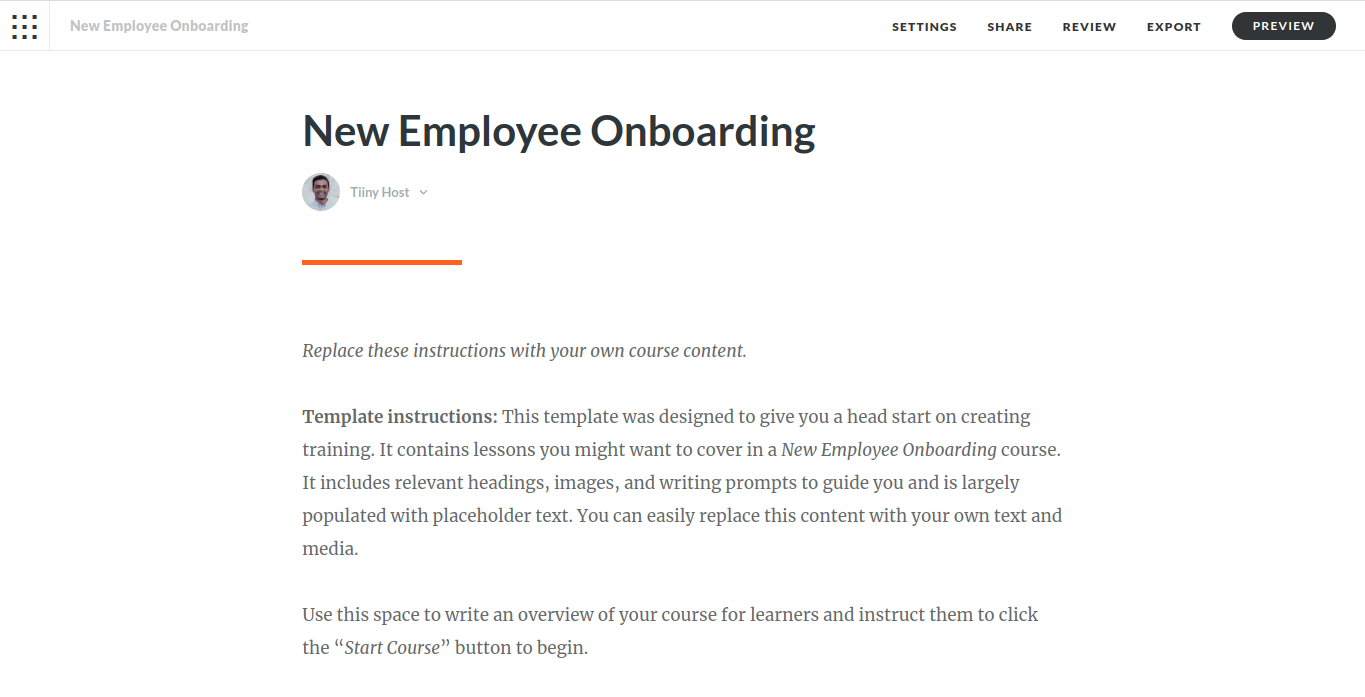
    Screenshot of a completed project in Articulate 360

    2. Select “web” as your “export type” from the drop down menu.

    3. Click “export” in the top right corner.
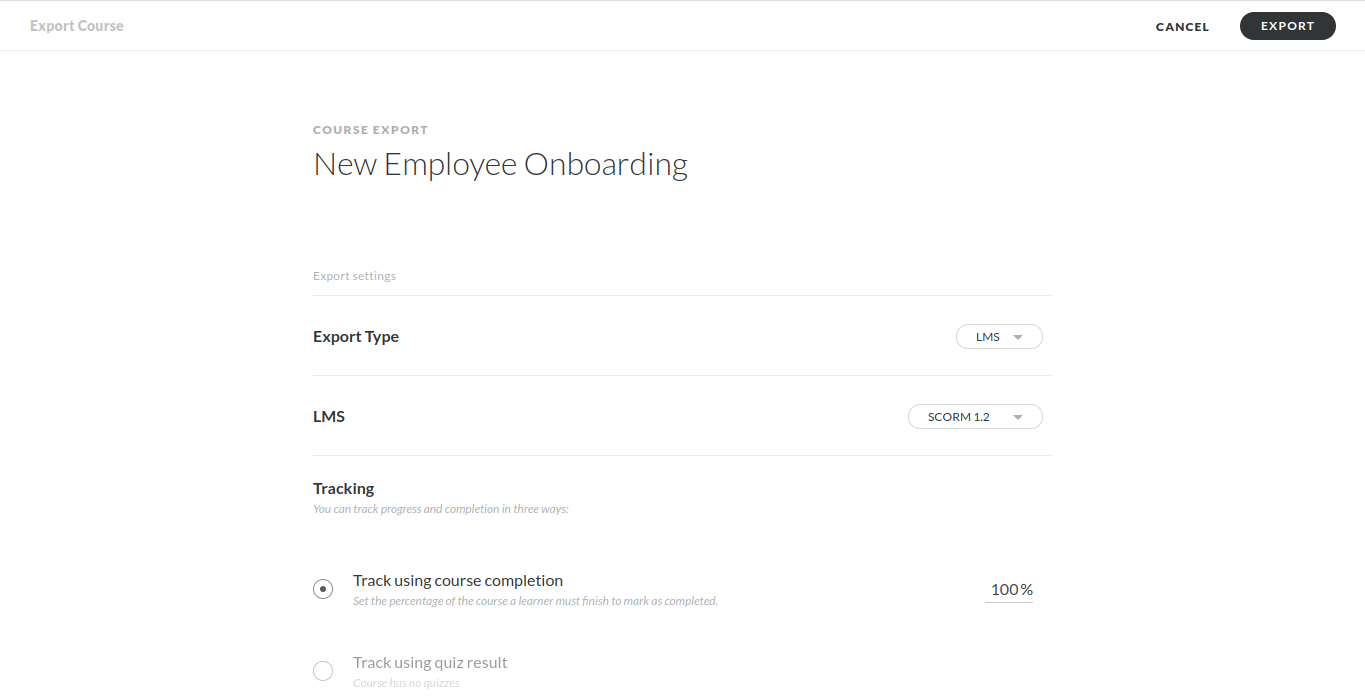
    Screenshot of Articulate 360 export screen

    4. Your E-learning course is now downloaded as an HTML Zip file.


    Hint: Don’t worry if you exported your Articulate course as a PDF. The upload process is exactly the same. Just pick “PDF” instead of “HTML” on the Tiiny Host upload screen.


    Step 2: Upload And Share Your E-Learning Course With Tiiny Host

    1. Head over to Tiiny.Host and you’ll see this screen:
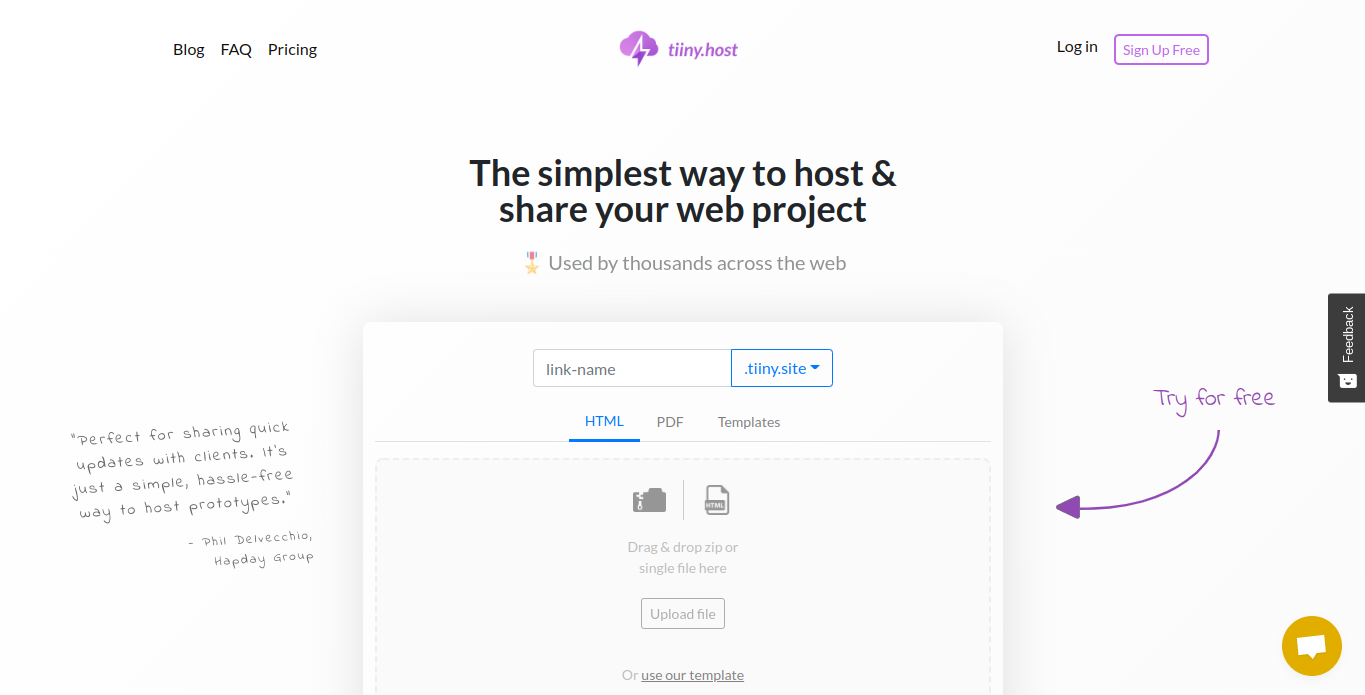
    Screenshot of Tiiny Host homepage

    2. Now drag and drop your zip file you exported from Articulate into the area titled “drag and drop zip or single file here”.
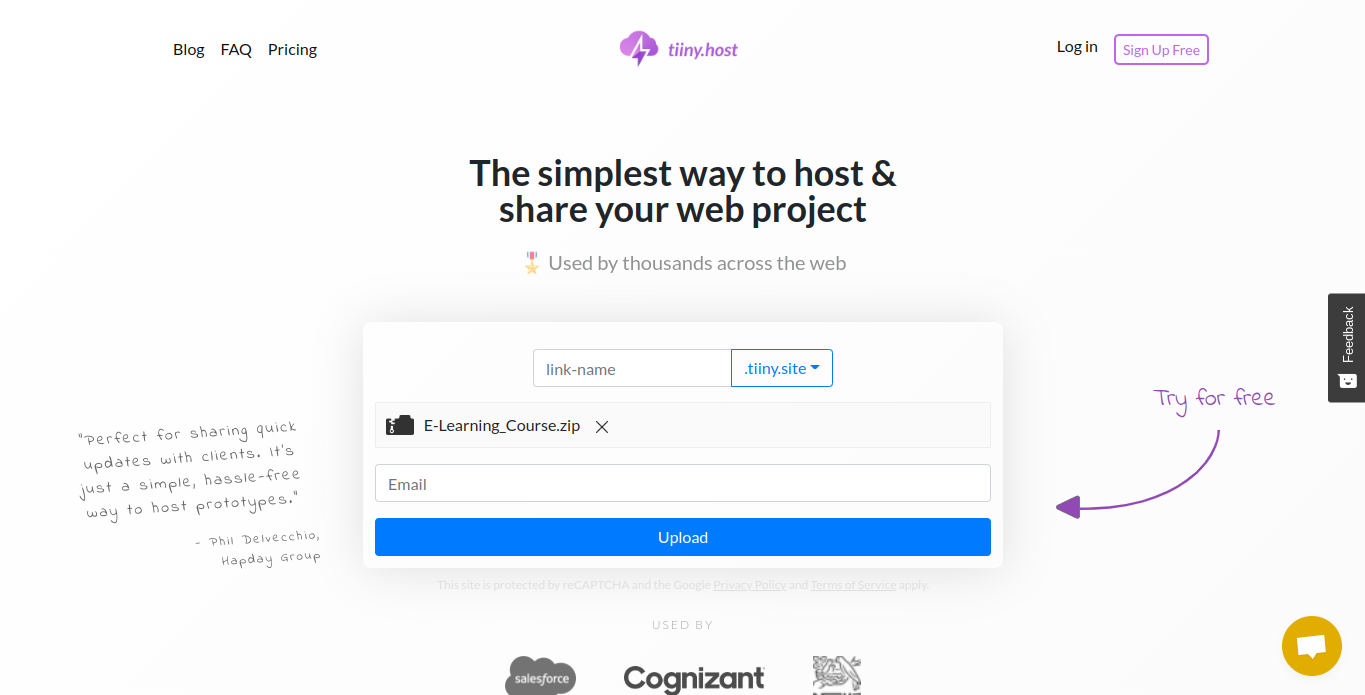
    Screenshot of Tiiny Host drag and drop upload screen

    3. Type in whatever name you want to appear as your URL for your course and a valid email address.
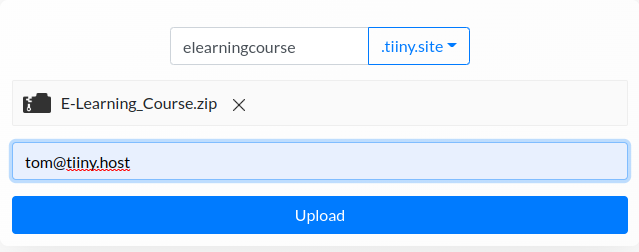
    Close up screenshot of the Tiiny Host upload screen after you've dragged and dropped your file across

    4. Click “Upload” and you’ll see this screen:
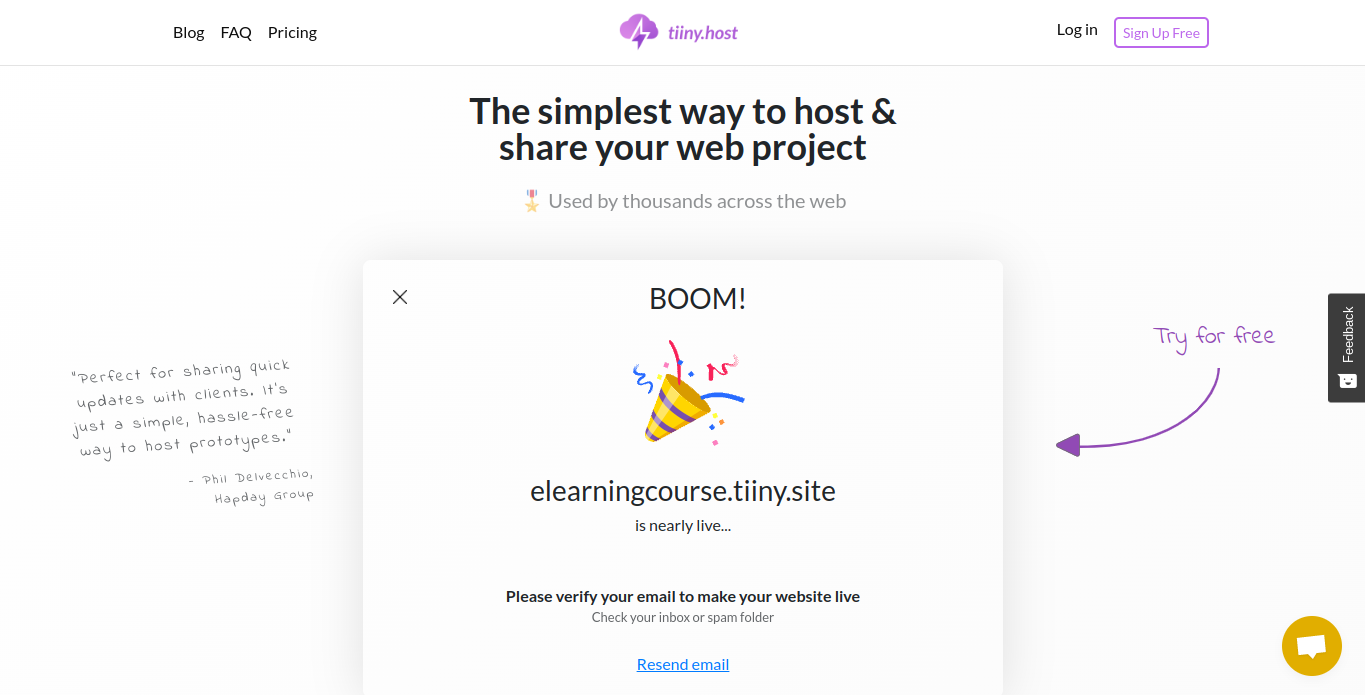
    Screenshot of the Tiiny Host success message after you've successfully uploaded your file

    4. Verify your email address and your site is now live!

    Tip: You may see a pop-up asking you to choose a HTML file to use as your homepage. This happens if you have multiple pages in your course.

    And voila! Easily host your e-learning course in 5 simple steps!

    What if my course won’t upload?

    Tiiny Host free accounts allow you to upload files up to 3mb in size and enables 2 game-changing efficiencies for e-learning course creators:

    1. Simplicity – By simplifying the hosting process Tiiny Host removes the barriers to entry for less technical e-learning course creators.
    2. Scalable – This simplified process enables e-learning course creators to leverage economies of scale benefits.

    Don’t worry if your file size is greater than 3mb, just sign up for a “Solo” or “Pro” account and you unlock even more potential with the following features:

    1. Custom Domains – Host all of your courses through your own custom domain name as opposed to a random URL. This is crucial if you intend to magnify your scope and build an E-Learning brand.
    2. Password Protection – Easily control audience access to your courses by toggling password protection on and off with a single click.
    3. Global Audience – Serve your clients fast, wherever they are. We include a content delivery network which ensures blisteringly fast loading speeds.
    4. Additional Users – Need to add a team member to administer your courses? No problem, easily scale at minimal cost by adding extra users to your existing account.

    E-Learning Hosting. Simplified.

    E-learning course creators shouldn’t have to wrestle with hosting platforms to upload and share their courses. WIth Tiiny Host you can focus all of your attention on growing and serving your audience.
  • How to Share Elearning Courses Using Google Cloud Platform

    How to Share Elearning Courses Using Google Cloud Platform

    The retirement of free web hosting options from Dropbox and Google Drive has sent a lot of folks scrambling to find a good replacement. Many folks have followed Tom Kuhlmann’s instructions for moving their elearning courses and portfolios over to Amazon S3.

    I’d like to introduce you to another great option: Google Cloud Platform.

    The free tier gives you 5GB of storage with additional space available at a minimal cost.

    We’ll walk through these steps for setting everything up and sharing your courses and portfolios on the Google Cloud Platform:

    • Create an account
    • Create a bucket
    • Upload your files
    • Share your files

    Creating Your Account

    1. Sign-up for a free Google Cloud Platform account at https://cloud.google.com/free/
    2. Create a Cloud Platform project on the Manage Resources page: https://console.cloud.google.com/cloud-resource-manager
    3. Enable billing for your project.
      https://support.google.com/cloud/answer/6293499#enable-billing

    Creating a bucket

    To create a bucket:

    1. Open the Cloud Storage browser in the Google Cloud Platform Console.
      https://console.cloud.google.com/storage/browser
    2. Click Create bucket.
    3. In the Create bucket dialog, specify:
      • The Name of your bucket.
      • The Storage class for your bucket: Multi-Regional.
      • The Location of your bucket: United States.
    4. Click Create.
    5. If successful, you are taken to the bucket’s page with the text “There are no objects in this bucket.”

    Make your bucket public

    You can change access settings on a file by file basis but for e-learning courses comprised of hundreds of individual files, setting the bucket to be public by default is a worthwhile time-saver.

    1. Open the Cloud Storage browser in the Google Cloud Platform Console.
      https://console.cloud.google.com/storage/browser
    2. Click the drop-down menu associated with the bucket that you want to make public.
    3. The drop-down menu appears as three vertical dots to the far right of the bucket’s row.
    4. Choose Edit bucket permissions.
    5. In the Add members field, enter allUsers.
    6. In the Select a role drop down, select the Storage sub-menu, and click the Storage Object Viewer option.
    7. Click Add.

    Uploading your course files

    The next step is uploading the course files to your bucket:

    1. Open the Cloud Storage browser in the Google Cloud Platform Console.
      https://console.cloud.google.com/storage/browser
    2. In the list of buckets, click on the bucket you created.You may want to organize your bucket by creating folders for each separate course.
    3. Click Upload files.
      (Alternatively, you can drag your files into this window)
    4. In the file dialog, browse to the desired file and select it.

    After the upload completes, you should see the file name, size, type, and last modified date in the bucket.

    When you’re all done you can use your public link to share your project:

    https://storage.googleapis.com/miketaylor/IDtheft/story.html

    Additional supporting information

    Costs

    Free tier info: https://cloud.google.com/free/

    See the Monitoring your storage charges tip for details on what charges may be incurred when hosting a static website, and see the Pricing page for details on Cloud Storage costs.

    FAQs

    https://cloud.google.com/free/docs/frequently-asked-questions

    Sharing individual files

    To share publicly the files that you want to serve:

    1. Open the Cloud Storage browser.
      https://console.cloud.google.com/storage/browser
    2. In the list of buckets, click on the bucket that contains the objects you uploaded.
    3. For each object you want to share publicly, click the checkbox in the Share publicly column.

    If successful, a link titled Public link appears next to the checkbox. This is the link you click to view your content. For example, for a storyline course, you’ll click the public link for story.html.

    Migrating from Amazon S3

    https://cloud.google.com/storage/docs/migrating