Tag: Multimedia Learning Principles

  • The Signaling Principle

    The Signaling Principle

    A practical guide to designing learning people actually notice

    Learners don’t ignore content because they’re lazy.
    They ignore it because your design makes them guess what matters.

    That’s the signaling principle (cueing).

    Signaling means you guide attention—on purpose.
    You make the important parts easy to spot and the unimportant parts easy to ignore.

    Why it works is simple: attention is limited. Working memory is limited.
    When learners waste effort searching for relevance, they have less capacity left to understand, connect, and remember.

    If they have to hunt for meaning, you’ve already made learning harder.


    The one question every screen must answer

    Every slide, screen, or interaction triggers a silent question:

    “What should I focus on right now?”

    Good signaling answers that question instantly.
    Poor signaling makes learners answer it themselves—while also trying to learn.

    That’s a bad trade.


    What counts as a signal

    Signals come in three main forms. None need to be fancy.
    Use fewer than you want to. Make them earn their keep.

    1) Visual signals

    Use visuals to point, not decorate.

    Effective examples:

    • One arrow pointing to one element
    • A highlight on the exact part being discussed
    • A “spotlight” effect: dim everything except the target
    • Step-by-step reveals (one idea at a time)

    Ineffective examples:

    • Highlighting everything
    • Three arrows competing on one screen
    • Motion that means nothing

    Rule: One screen, one focal point.


    2) Textual signals

    Text is a quiet power tool.

    Effective uses:

    • Headings that state the takeaway (not the topic)
    • Bold for key terms or decisions (sparingly)
    • Bullets to group ideas, numbers to show sequence
    • Preview lines: “There are three things to watch for…”

    Avoid:

    • Paragraph walls
    • Bold-as-decoration
    • Vague headings like Overview

    If everything is emphasized, nothing is.


    3) Verbal signals

    Your voice is part of the design.

    Signals include:

    • A pause before the key point
    • A slower pace on the “why”
    • Phrases like “Here’s the part people miss…”
    • One clean repetition

    Monotone narration forces learners to guess importance.
    If something matters, it should sound like it matters.


    Where signaling matters most

    Signaling helps almost everywhere, but it matters most when:

    • The material is complex or dense
    • The medium is fast or transient (video, animation, demos)
    • Learners are novices
    • Visuals have many parts or relationships

    Novice learners don’t yet know what to pay attention to.
    That’s not their flaw. That’s the assignment.


    When signaling helps less (and can backfire)

    Be cautious when:

    • Learners already know the domain well
    • The content is simple or familiar
    • Signals pile up and create clutter

    Here are red flags:

    • If your slide has five highlights, it has zero.
    • If the cue stays after the moment passed, it becomes noise.
    • If learners ask “which one?” your cues are competing.

    More cues doesn’t mean more learning.
    It usually means more distraction.


    Quick diagnostics before you ship

    Use these tests before finalizing any learning artifact.

    The 5-second test

    Show the screen for five seconds.
    Can a learner say what matters? If not, redesign.

    The pointer test

    When the narration references something, could a learner point to it instantly?
    If not, add or improve the cue.

    The squint test

    Squint at the screen.
    Does the focal element still pop? If not, simplify and re-signal.

    The timing test

    Does the cue appear exactly when the narration references it?
    If it shows up early or late, learners still have to search.


    🔍 Sidebar: What signals really do

    Most people think signaling just means “point here.”
    It does more than that.

    Signals perform three jobs:

    1) Guide attention
    They reduce search. Search is wasted effort.

    2) Show structure
    They tell learners how ideas are organized: steps, parts, priorities.
    Headings, previews, and numbering aren’t decoration. They’re a map.

    3) Help integration
    They make relationships obvious.
    Words match visuals. Narration matches action. Cause links to effect.

    Good signaling doesn’t just say look here.
    It also says this belongs with that.


    Common design mistakes

    • Highlighting entire screens
    • Using color or motion without meaning
    • Assuming learners will “figure it out”
    • Confusing engagement with clarity

    Learning often fails quietly.
    Confusion looks like compliance.


    The mindset shift that matters

    Stop thinking like a content expert.
    Start thinking like a guide with a flashlight.

    Your job isn’t to show everything.
    It’s to guide attention, moment by moment, so learners can use their limited cognitive resources for understanding and integration.


    Bottom line (and a challenge)

    Design is a series of attention decisions.
    Signaling makes those decisions visible.

    Now do this: take one messy slide you’ve made before.
    Redesign it using two signals max.

    If it gets clearer, you’re doing it right.
  • Learning Science: The Coherence Principle Decoded

    Learning Science: The Coherence Principle Decoded

    Picture this: I’m fresh on the scene as a new learning designer, proud of my first course about the pH of water systems in a coal-fired power plant. To ‘spice things up,’ I throw in a fun fact about the pH of beer. The result? A confused audience and a diluted message. It’s a pitfall many novice designers fall into—the lure of making things ‘interesting’ at the cost of clarity and focus. Welcome to an exploration of a guideline that would have saved me from this rookie mistake. This brings us to an essential rule of thumb for anyone invested in crafting compelling learning modules—the Coherence Principle.

    The Underpinnings of the Coherence Principle

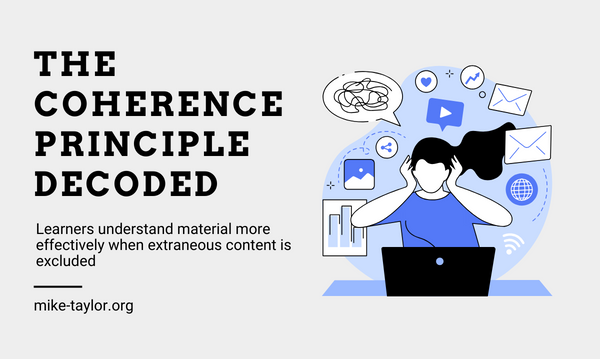
    The Coherence Principle asserts that learners can be distracted by extraneous material. In simpler terms, don’t serve a five-course meal when the learner ordered only an appetizer. Your training program may be a marvel of multimedia, but if it’s flooded with irrelevant content—be it text or visuals—it’s doing more harm than good.

    A Tale of Cognitive Overload

    Your learners’ brains are not infinite vessels; they have a limit on how much they can process at a given time, a concept explored by cognitive load theory. Irrelevant pictures, gratuitous use of color, and redundant bullet points are like cognitive speed bumps, slowing down the assimilation of essential information. This results in cognitive overload, where a learner’s working memory is so bogged down with unnecessary elements that they fail to grasp the core ideas.

    Scientific Backing: The Proof is in the Pudding

    Don’t take my word for it. In a 2006 study by Richard E. Mayer and Roxana Moreno, learners who were exposed to educational material aligned with the Coherence Principle performed significantly better in retention tests than those who received ‘embellished’ learning materials[1]. Another study led by Paul Ayres in 2013 established that learners who faced excessive cognitive load exhibited a decline in performance[2].

    The Right Way to Use Visuals

    Let’s be clear: this principle doesn’t discourage the use of images or multimedia. In fact, pictures can aid in learning, a phenomenon encapsulated in the adage, “A picture is worth a thousand words.” The trick is to use images that serve as cognitive aids and are directly relevant to the material at hand. For instance, if you’re explaining the water cycle, an accompanying diagram can cement the concept. A random picture of a beach, however lovely, serves no purpose.

    The Convergence of Learning and Marketing

    If we delve into the world of marketing, a field I’ve often argued needs to merge its wisdom with educational strategies, you’d see a similar adherence to coherence. The most effective ad campaigns don’t bombard you with information. They give you what’s relevant and serve it in a way that your primal brain, a nod to Daniel Kahneman’s Dual Processing model, can digest and act upon.

    Parting Words

    The Coherence Principle isn’t just a theory; it’s a call to arms to respect the cognitive limits of your learners. In an age of information overload, less is often more. We, as instructional designers, owe it to our learners to serve them a perfectly curated learning experience, devoid of distractions.

    As you embark on this journey of streamlining and coherence, remember, you’re not just an instructional designer; you’re an architect of minds. Build wisely.

    Sources:

    1. Richard E. Mayer and Roxana Moreno, “Nine Ways to Reduce Cognitive Load in Multimedia Learning,” Educational Psychologist 38, no.1 (2003): 43-52.
    2. Paul Ayres, “Can the use of cognitive load theory and deliberate practice explain the performance patterns of novices learning to suture?” Medical Education 47, no. 9 (2013): 922–930.
  • Fresh Finds: The Best of Learning, Design & Technology | September 7, 2018

    Fresh Finds: The Best of Learning, Design & Technology | September 7, 2018

    Looking for a previous edition? Check out the archives

    Our ability to grow is directly proportional to our ability to share. — @GapingVoid

    Once again, it is time for the happy Friday dance! When you’re done dancing, here are some of the best things I found this week from the world or learning, design, and technology.  Hope you have a fantastic weekend. Cheers!

    Institutional Innovation

    Modern L&D should “facilitate interactions & relationships, allowing organizations to increase the flow of information within and across their organization’s walls to increase learning, adaptability, and … innovations.” This article by John Hagel (@jhagel) and John Seely Brown (@jseelybrown) is a must read for how we should be thinking about the future of workplace learning.

    https://www2.deloitte.com/insights/us/en/topics/innovation/institutional-innovation.html

    Networking for introverts, the shy and the socially anxious

    Networking can be intimidating for a lot of people. In this post, Richard Cosgrove (@rcosgrove) shares how preparation can be the secret to tackling a networking event if you’re a person who struggles with socializing.

    https://bit.ly/2wN0U9y

    The New Science of Building Great Teams

    This is an interesting and relevant finding from Alex “Sandy” Pentland (@alex_pentland)about the key to building great teams. Patterns of communication are the most important predictor of a team’s success. They are as significant as all the other factors—individual intelligence, personality, skill, and the substance of discussions—combined.

    https://hbr.org/2012/04/the-new-science-of-building-great-teams

    Tips to Improve Your PowerPoint Presentation from Cognitive Theory of Multimedia Learning

    In this guest post on the Learning Scientists blog, Anna Navin Young discusses some key points from Richard E. Mayer’s Cognitive Theory of Multimedia Learning and how “spicing up” your slides can actually negatively impact your audience’s learning.

    http://www.learningscientists.org/blog/2018/8/29-1

    Learning, Design & Technology Miscellany

    A few other things just because I can.

    Conference News

    Design Resources

    • Color Leap | Do a little time traveling and browse the colors of history with this fun, cool site.
    • If you ever need some fake data to mockup a project, Tabipsum can hook you up.

    Apps & Tools

    • Affinity Designer | download the beta for this free professional desktop publishing app.
    • iLoveIMG | A fast, free web app for easy image modification.

    Books/Courses/Podcasts

    What I’m listening too

    • I’m working along to “Summer Fridays” this morning. (Seems appropriate given how hot it has been here this week.)

    Thanks for reading! If you found anything good, forward it to a friend or spread the word with a tweet.


    Interested in the things that didn’t make the cut here? Follow me on Twitter or even better, subscribe to my newsletter.

    I enjoy sharing my ideas and experience with corporate professionals via workshops, keynote presentations, podcasts, and webinars. Learn more in my Speaking and Workshop Information Sheet.

    UPCOMING EVENTS:

  • 3 Easy Ways to Cut Text And Upgrade Your Slides

    3 Easy Ways to Cut Text And Upgrade Your Slides

    Reading your slides is public enemy #1 when it comes to presenting and your audience hates it more than anything! And if you do it because you want to reach visual learners, there is no such thing. Research shows that when people both hear and see the same verbal message they have trouble focusing on either one.

    Use the Notes pane.

    Many people use their slides as teleprompters. A better approach is to use the Notes pane for your speaker notes and other personal reminders. This way you can have the best of both worlds. You’ll see your speaker notes privately and keep your slides nice and clean. So, if you like your teleprompter you can keep your teleprompter — just don’t force it on your audience!

    If you like your teleprompter, you can keep your teleprompter.

    Build your slides for your audience and keep your notes for yourself.

    Make Only One Point Per Slide

    A great thing about building slides is that they are free. It doesn’t cost anything to use additional slides and it doesn’t take any longer if you spread those three talking points across three different slides. I always cringe when I hear organizations or event planners put a limit on the number of slides. Usually, they’re trying to equate the number of slides to an amount of time. When done well, the number of slides has absolutely nothing to do with how long it takes to present them.

    The number of slides is irrelevant. The flow, pace, and clarity of the message is what matters the most.

    Our brains can only process one idea at a time anyway, so why tax them with a flurry of information all at the same time?

    Create a handout

    Where do you put all the facts, figures and other supplemental details related to your topic? In the handout you create specifically for that purpose. Creating a separate handout lets your slides carry your message effectively and efficiently with visuals and the power of emotions without getting bogged down in all the minutiae.

    Repeat after me. Good slides to not make good handouts.

    If all you want to do is create a file of facts and figures, then cancel the meeting and send in a report. – Seth Godin

    A good handout helps your audience pay attention and engage with you instead of furiously trying to scribble down numbers, websites or other stats they want to remember.

    I’d love to hear what you do in your work. Do you have similar approaches or take a different angle?